> For the complete documentation index, see [llms.txt](https://docs.definitive.fi/llms.txt). Markdown versions of documentation pages are available by appending `.md` to page URLs; this page is available as [Markdown](https://docs.definitive.fi/users/tax-reporting.md).
# Tax Reporting
Exporting your Definitive transactions for taxes
Definitive makes it easy to get your trades into your preferred crypto tax platform.
Definitive currently supports two ways to export your transaction history: 1) automatic trading vault address sync and 2) exported as a full trade history CSV.
### **Trading vault address sync**
Copy your trading vault address directly into Awaken, or any crypto tax platform supporting this function, and they will pull your full Definitive order history automatically.\
\
To find your trading vault addresses:
1. Click on [Definitive Prime](https://app.definitive.fi/) from the top navigation.
2. Select Vault Addresses from the tabs below the chart.
3. Copy the Vault Addresses to import into your tax platform as a Wallet.
### **Generate CSV export**
Download your transaction history from your Portfolio Page and upload it to your tax platform of choice. We support a full raw export and formatted exports for Koinly and Cointracker.\
\
To export, go to your [Portfolio Page](https://app.definitive.fi/portfolio)
1. Click Export Order History.
2. Select CSV export
3. Select year to filter for all transactions made in that year.
4. Under Format, you can select Raw Export or a tax platform-specific format.
5. Click Generate Export to download a CSV export of your trade history.
***
### [**Awaken.tax**](https://awaken.tax/) **- automatic trading vault address sync**
For Definitive traders using Awaken, you can sync all your trades automatically by exporting directly from the Portfolio Page.
In Definitive, go to your [Portfolio Page](https://app.definitive.fi/portfolio)
1. Click Export Order History
2. Click Awaken Export, click Export with Awaken
3. Click Link Wallets
{% embed url="" %}
To add from Awaken, go to Accounts in Awaken
1. Click Add Account
2. Select Ethereum or Solana
3. Paste your corresponding Trading Vault Addresses
4. Click Add Account
*If you'd like to import only certain transactions, you can also modify and import your CSV and automatically format with AI in Awaken in the left navigation under More >> Secure file upload.*
***
### [**Koinly**](https://koinly.io/) **- using CSV upload**
For Definitive users, Koinly supports both wallet address sync and CSV upload. However, if you have an extremely high count of transactions, Koinly's wallet address sync feature may not fully work.
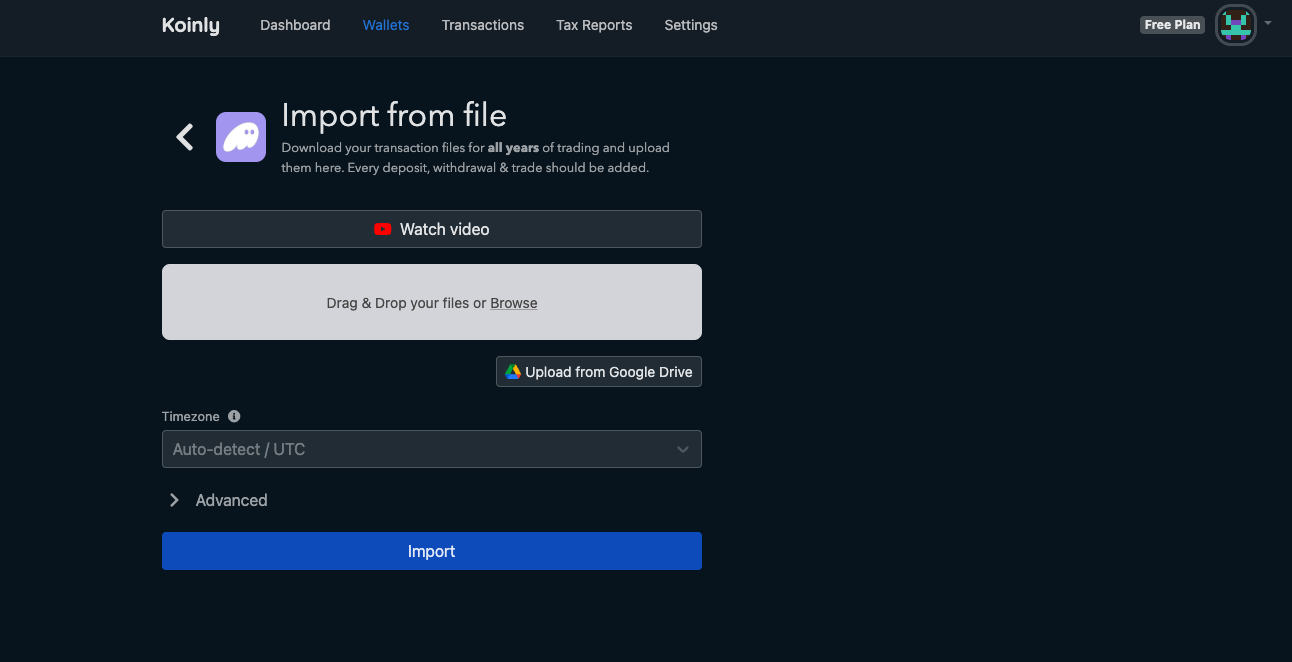
1. In Definitive, Export Order History from the [Portfolio Page](https://app.definitive.fi/portfolio), and select Koinly as the format.
2. In Koinly, go to Wallets along the top navigation, and click Add wallet
3. Select Phantom (or any major wallet), and click Import from File
4. Upload your Definitive Koinly-formatted CSV Export